
Configuring Datastore
Datastore is where the backups will be saved. This article goes over configuring datastore using a disk on the machine. If not using volume from machine check out this article to use NAS storage via NFS
Creating Datastore
- Login to PBS
- Under Storage/Disks got to Directory
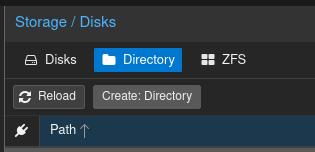
- Click Create: Directory
- Select the disk
- Choose Filesystem (I chose ext4)
- Give datastore a name
- Make sure Add as Datastore is selected
- Click Create
Setting up Datastore in Proxmox Backup Server
- Under Datastore click Create Datastore
- Name: Choose name to call it
- Backup Path: Select the path to folder directory on the machine.
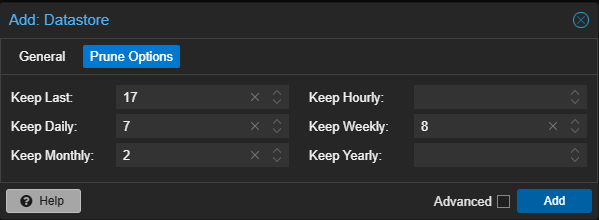
- Under Prune option this is personal preference, but deduplication really lowers the amount of space needed, so keeping more backups is not bad decision.
- Once done click Add
When the datastore is added, clicking on datastore will give you info, and also ability to adjust Prune and CG Jobs. Also, under Verify Jobs it's good idea to add Verify Job for checking that backup isn't corrupted and that will work when needed.
- Under Prune & CG Jobs make sure CG Job is set to daily. You can adjust Prune job here as well
- Under Verify Job click Add and schedule Verify to run Daily and Re-Verify to run every 30 days
It is optional to create a namespace. Storing your backups in separate namespaces is very useful if you ever plan on planning to use your PBS to store backups from multiple Proxmox hosts, or even other Linux server.
-
Under Content click Add Namespace
- Parent Namespace: This would be folder in which this subfolder will live, usually root
- Namespace Name: name of the folder where backups will live