User Security & Access Control
The majority of NAS security needs to be done preventatively to easily recover from potential issues that might arise in the future.
It’s important to note that cybersecurity is always evolving and staying up to date with best practices is important. These are things I normally change, but depending on your needs, you can potentially secure your NAS even further.
Making sure that every user on NAS system is properly created, assigned, and given least amount of privilege, can help with reducing any type of cyberattack.
Disable Admin Account
First we must create a new user and ensure that they have admin permissions before disabling the admin user. Disabling Guest account is good practice as well, but it's personal preference, if group based access is properly managed.
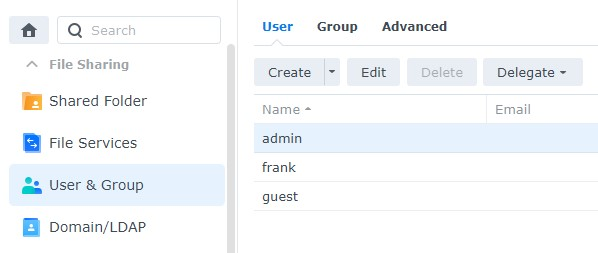
- Select Control Panel, then select User & Group and Edit the admin user
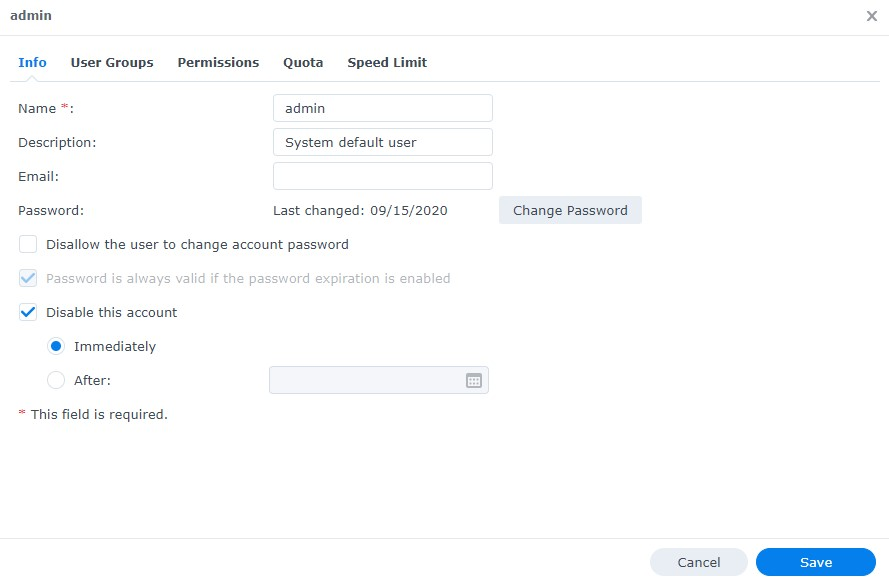
- Select Disable this account, then select Save. This will ensure that the admin account is disabled
Enable Two Factor Authentication
- Select the Person icon in the top right and select Personal
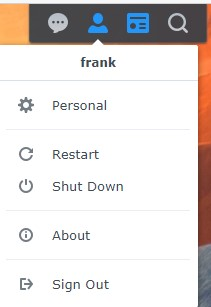
- Select Enable 2-step Authentication. The email service will need to be enabled for this
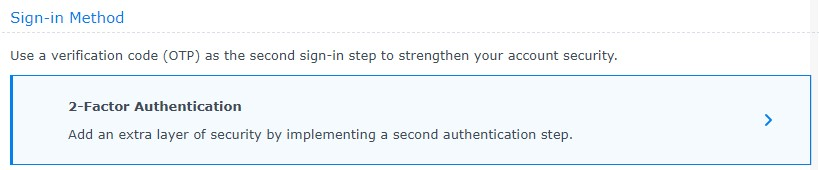
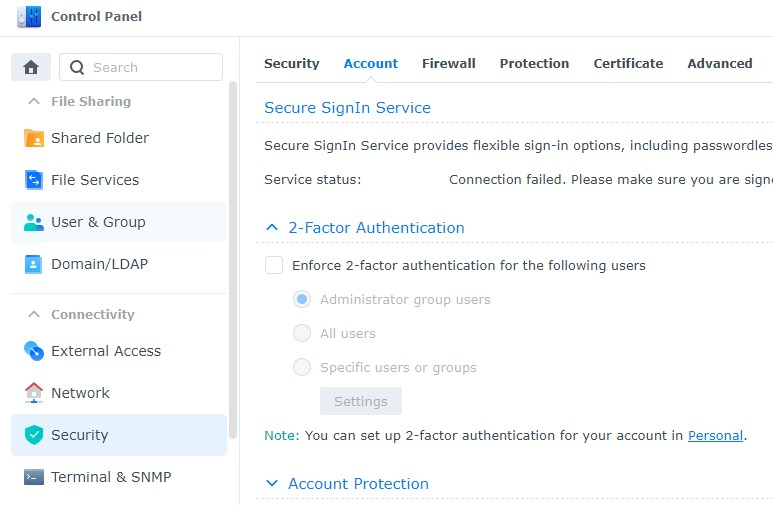
- If you’d like to force all users to set up two-factor authentication, you can do so by selecting Control Panel, then Security, then Account and Enforce two-factor authentication. You can enable it for a specific group or all users
Enable Auto Block
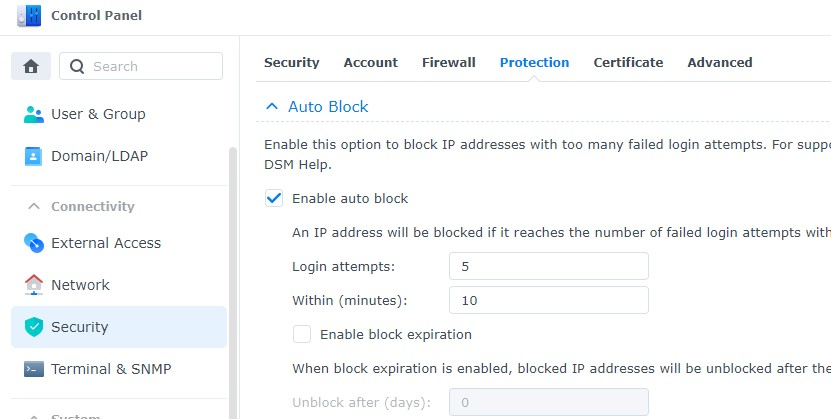
Auto block will automatically block IP addresses that have failed a certain number of logins during a certain period of time.
- Open Control Panel and select Security
- Select Account. Ensure Enable auto block is selected. Set the Login Attempts and Within parameters to be what you’d like, then apply. This will ensure that IP addresses are automatically blocked after a certain number of failed login attempts
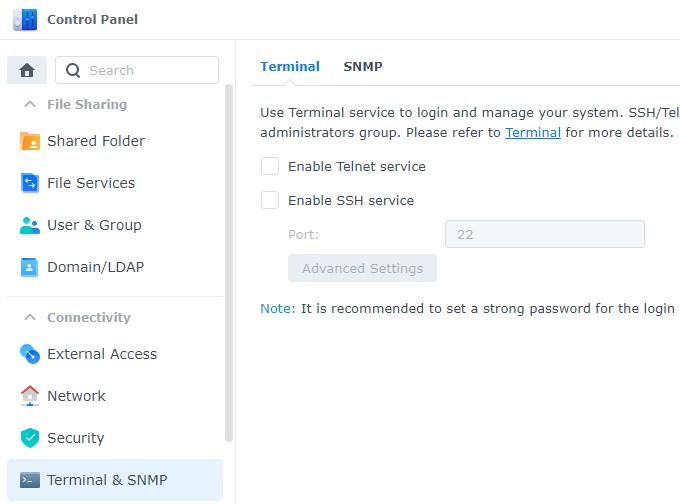
Disable SSH
There are multiple reasons why you might want to use SSH, but if you’re not actively using it, you should disable it. Even if you enable two-factor authentication above, SSH does not use it. For this reason, if your network is compromised, an attacker can try and brute force your password through SSH.