Proxmox VE & PBS Setup Guide
Documentation on Proxmox services and setup guides as well as best practices and security configurations
- Proxmox Virtual Environment Setup
- Installation
- Web Console Tour & Preliminary Setup
- Building a Virtual Machine & Templates
- Building Containers (LXC) & Templates
- User Management
- Backups & Snapshots
- Integrated Firewall
- Networking
- Shared Storage
- Clustering
- High Availability
- Proxmox Troubleshooting and Commands
- Connecting Server Directory to Synology NAS (NFS Setup)
- Installation and Configuration Guides for Proxmox Backup Server
- Installing Proxmox Backup Server
- Configuring Updates for Proxmox Backup Server
- Configuring Datastore
- Security Configuration
- Backups Setup
Proxmox Virtual Environment Setup
Complete Setup & Configuration Guide to setup Proxmox with prioritizing security
Installation
This article walks through downloading the Proxmox VE ISO, creating a bootable USB drive, and installing Proxmox on your server hardware.
Note: Proxmox VE is a bare-metal installer. The entire target drive will be erased. Back up any important data before proceeding.
Creating Bootable Drive
- Download the Proxmox VE ISO
- Visit the official Proxmox download page
- Select the latest Proxmox VE ISO Installer and download it to your computer.
- Create a Bootable USB Drive Using Rufus or Etcher
- Open Rufus, select your USB device, select the Proxmox ISO, and click Start
- Accept any format warnings- all data on the USB will be erased
First Boot and Install
- Insert the USB into your Proxmox server and power it on
- Enter BIOS/UEFI (usually F2, F12, DEL, or ESC at boot) and set USB as the first boot device
- At the Proxmox boot menu, select: Install Proxmox VE (Graphical)
Note: If the graphical installer hangs or fails, try 'Install Proxmox VE (Terminal UI)' — it has better hardware compatibility. - Accept the End User License Agreement (EULA)
- Select Target Hard Disk — click Options to choose the filesystem:
• ext4 (default) — simple, reliable, good for most setups
• ZFS — advanced, supports RAID, snapshots, data integrity checksums (requires more RAM) - Configure Location & Time Zone — select your country, time zone, and keyboard layout
- Set the Administrator Password — set a strong root password and enter an email address for alerts
- Configure Network Settings:
• Select your network interface (NIC)
• Hostname: e.g., pve.localdomain
• IP Address: set a static IP (e.g., 192.168.1.100)
• Netmask: typically 255.255.255.0
• Gateway: your router's IP (e.g., 192.168.1.1)
• DNS Server: e.g., 8.8.8.8 or your router's IP - Review the summary and click Install
- Once installation completes, remove the USB drive and click Reboot
First Access via Web Browser
- On another computer, open a web browser
- Navigate to your Proxmox server's IP and port 8006:
https://192.168.1.100:8006 - Accept the self-signed SSL certificate warning in your browser
- Log in with:
• Username: root
• Password: (the password you set during installation)
• Realm: Linux PAM standard authenticatio
Note: You will see a 'No valid subscription' popup — this is normal for the free/community version. Click OK to dismiss it.
Web Console Tour & Preliminary Setup
This article covers the Proxmox web interface, the primary tool for managing your server, VMs, and containers. Also, best practices for first login.
Post-Install Configuration (Highly Recommended)
Disable the Enterprise Repository (No Subscription)
- In the web console, select your node (e.g., 'pve') in the left panel
- Go to: Updates > Repositories
- Select the enterprise repository line (pve-enterprise) and click Disable
- Click Add and select 'No-Subscription' repository
- Update the System
apt update && apt dist-upgrade -y- Reboot after updating
reboot
Navigating Web Interface
Left Panel — Server View
• Datacenter — top-level settings (cluster, permissions, storage, etc.)
• Your Node (e.g., 'pve') — the physical server
• Virtual Machines and Containers appear as children under the node
Node Options (click your node)
• Summary — CPU, memory, disk, and network stats
• Notes — add documentation/notes about your server
• Shell — opens a terminal session on the Proxmox host
• Updates — check and apply system updates
• Disks — view physical disks and manage LVM/ZFS
• Network — view and configure network interfaces and bridges
• DNS — configure DNS settings
• Time — configure time zone and NTP
• Syslog — view system logs
• Task History — see all past tasks and their results
Datacenter Options
• Summary — overall cluster status
• Storage — add and manage storage backends
• Backup — schedule automatic backups
• Replication — configure storage replication
• Permissions — manage users, roles, and access controls
• HA — high availability configuration
• Firewall — datacenter-level firewall rules
Building a Virtual Machine & Templates
This article covers creating and configuring a full virtual machine in Proxmox. The example uses Ubuntu Server as the guest OS. Ubuntu Server is best lightweight option for running server as virtual machine. Unlike Ubuntu Desktop, this VM is accessed via command line, doesn't have GUI.
Uploading ISO Image
- In the web console, navigate to your node > local storage > ISO Images
- Click Upload and upload a Linux ISO (e.g., Ubuntu Server), OR
- Click Download from URL and paste a direct ISO link to have Proxmox download it directly
Create Virtual Machine
- Click the Create VM button in the top right corner
- General tab:
• Node: select your node
• VM ID: auto-assigned (e.g., 100)
• Name: give it a descriptive name (e.g., ubuntu-server) - OS tab:
• Select the uploaded ISO from storage
• Guest OS Type: Linux; Version: 6.x - 2.6 Kernel - System tab:
• Machine: Default (i440fx) for Linux; q35 for Windows or PCIe passthrough
• BIOS: SeaBIOS (default) or OVMF (for UEFI)
• Enable Qemu Agent — check this box (we will install the agent later) - Disks tab:
• Bus/Device: VirtIO Block (virtio0) — best performance
• Storage: local-lvm (default)
• Disk Size: 32 GB minimum for Ubuntu Server
• Enable SSD emulation if using an SSD-backed storage - CPU tab:
• Sockets: 1
• Cores: 2 (or more depending on your server)
• Type: x86-64-v2-AIO or host (host gives best performance but reduces migration flexibility) - Memory tab:
• RAM: 2048 MB (2 GB) minimum for Ubuntu Server
• Enable Ballooning if you want dynamic memory allocation - Network tab:
• Bridge: vmbr0 (the default bridge connected to your physical NIC)
• Model: VirtIO (paravirtualized) — best network performance - Confirm tab — review settings and click Finish
Start and Install the OS
- Select your new VM in the left panel
- Click Start, then click Console to open the display
- Follow the OS installation wizard (Ubuntu Server example):
• Select language and keyboard layout
• Configure network (DHCP by default)
• Configure storage — use the entire disk
• Create your user account and set a password
• Install SSH server when prompted (important for remote access)
• Complete installation and reboot
Virtual Machine Templates
Templates allow you to quickly clone new VMs without repeating the installation process.
Note: Converting a VM to a template is permanent. Clone it first if you want to keep the original running VM.
Preparing a VM for Template
- Start with a fully installed and updated VM
- Log into the VM and clean it up:
sudo apt clean
sudo apt autoremove -y- Clear machine-specific data (cloud-init or sysprep approach):
sudo apt install -y cloud-init- Clear the machine ID so each clone gets a unique one:
sudo truncate -s 0 /etc/machine-id
sudo rm /var/lib/dbus/machine-id
sudo ln -s /etc/machine-id /var/lib/dbus/machine-id- Shut down the VM:
sudo shutdown -h now
Converting to a Template
- In the Proxmox web console, right-click the VM
- Select Convert to Template
- Confirm the VM icon changes to a template icon
Cloning from a Template
- Right-click the template and select Clone
- Choose:
• Mode: Full Clone (independent copy) or Linked Clone (shares template disk, faster but dependent)
• Name: give the new VM a name
• Target Storage: where to store the clone's disk - Click Clone Proxmox creates the new VM
- Configure the clone (resize disk if needed, set static IP, etc.) before starting it
Building Containers (LXC) & Templates
LXC containers are a lightweight alternative to full VMs. They are ideal for running Linux services with minimal overhead. However they are running as rootless, so there is little more risk to compromising hypervisor itself as it shares kernel, unlike VM. Best for internal only apps.
Note: Privileged containers run as root and have more hardware access. Unprivileged containers are more secure and recommended for most use cases.
Download Container Template
- In the web console, navigate to your node > local storage > CT Templates
- Click Templates
- Browse the template library, select a distro (e.g., Ubuntu 22.04), and click Download
Create an LXC Container
- Click Create CT in the top right corner
- General tab:
• Node: your node
• CT ID: auto-assigned
• Hostname: e.g., ubuntu-ct
• Password: set the root password for the container
• SSH public key: optionally paste your public key for key-based access - Template tab: select the downloaded template
- Disks tab:
• Storage: local-lvm
• Disk size: 8 GB is often sufficient for light services - CPU tab:
• Cores: 1–2 (containers share host CPU efficiently) - Memory tab:
• Memory: 512 MB – 1024 MB for most services
• Swap: 512 MB - Network tab:
• Bridge: vmbr0
• IPv4: DHCP or set a static IP/CIDR (e.g., 192.168.1.101/24)
• Gateway: your router IP - DNS tab: leave default or set your preferred DNS server
- Confirm and click Finish
Start the Container
- Select the container, click Start
- Click Console to open a terminal session
- Alternatively, SSH into the container using its IP address
- Update the container:
apt update && apt upgrade -yCreating Container Template
Just like VM templates, you can convert a configured LXC container into a template for rapid reuse.
Preparing the Container
- Configure your container as desired (install packages, set configs)
- Clean up the container:
apt clean && apt autoremove -y- Shut down the container from the web console or:
poweroff
Converting to a Template
- Right-click the container in the web console
- Select Convert to Template and confirm
Cloning a Container Template
- Right-click the template, select Clone
- Set a name and target storage for the clone
- Click Clone
- Before starting the clone, update the hostname and network settings if needed
User Management
Proxmox supports multiple users, roles, groups, and authentication realms. This is essential for any shared or production environment, as well as keeping access limited and secure.
Authentication Realms available in Proxmox
- Linux PAM- uses the host OS users (/etc/passwd). Root uses this realm
- Proxmox VE Authentication Server (PVE)- built-in Proxmox user database. Best for creating non-root admin accounts and GUI access
- LDAP/Active Directory- for enterprise integration
Creating and Setting up New User
Create User
- Go to Datacenter > Permissions > Users
- Click Add
- Fill in:
• User name: e.g., homelab-admin
• Realm: Proxmox VE Authentication Server
• Password: set a strong password
• Email, First/Last Name: optional - Click Add
Assigning Premissions
- Go to Datacenter > Permissions
- Click Add > User Permission
- Set:
• Path: / (root, grants access to everything)
• User: the user you just created
• Role: Administrator (for full access) or PVEVMAdmin (for VM management only) - Click Add
Built In Roles
- Administrator — full control
- PVEVMAdmin — manage VMs (no host configuration)
- PVEVMUser — view and use VMs, no configuration
- PVEDatastoreAdmin — manage storage
- PVEAuditor — read-only access
Note: It is best practice to avoid using the root account for daily tasks. Create a named admin account for normal use.
Backups & Snapshots
Protecting your VMs and containers with regular backups is essential. Proxmox includes built-in backup and snapshot tools. Also, it's good idea to connect Proxmox Backup Server if you have an option of running another server. This way backups are stored off site.
For configuring Proxmox Backup Server with Virtual Environment click here for a guide
Snapshots
Snapshots save the state of a VM or container at a point in time. They are fast but stored on the same storage as the VM — not a true backup.
- Select a VM or container in the web console
- Go to the Snapshots tab
- Click Take Snapshot
- Name the snapshot and add an optional description
- Check 'Include RAM' if you want to capture the running memory state (only for VMs)
- Click Take Snapshot
- To store: select the snapshot and click Rollback.
Note: Snapshots use disk space and can impact VM performance over time. Do not rely on snapshots as your only backup strategy, rather as a quick reverse when you're working or configuring something on a VM.
Manual Backups
- Select a VM or container
- Go to the Backup tab
- Click Backup Now
- Select storage (e.g., local), backup mode, and compression
- Click Backup- Proxmox creates a compressed backup archive
Note: If you have PBS connected to your Proxmox system, you can change the Storage from Local to PBS.
Scheduled Backups
- Go to Datacenter > Backup
- Click Add
- Configure:
• Node: your node or all
• Storage: where to save backups
• Schedule: e.g., daily at 2:00 AM
• Selection: All VMs, specific IDs, or exclude certain VMs
• Retention: set how many backups to keep (e.g., keep last 7) - Click Create- the schedule is saved and runs automatically
Backup Modes
- Stop — stops the VM, backs up, then restarts. Cleanest backup.
- Suspend — suspends the VM briefly during backup. Less downtime.
- Snapshot — VM keeps running. Fastest but may have slight consistency risk.
Integrated Firewall
Proxmox includes a built-in firewall that can be configured at the Datacenter, Node, and VM/Container level.
Firewall Hierarchy
- Datacenter — rules that apply to all nodes in the cluster
- Node — rules specific to the Proxmox host itself
- VM/Container — rules specific to individual VMs/containers
Enabling the Firewall
- Go to Datacenter > Firewall > Options
- Set Firewall to Yes (Enabled)
- Do the same for your node: Node > Firewall > Options
- For a specific VM/Container: select it > Firewall > Options > Enable
Warning: Always create rules to allow SSH (port 22) and the Proxmox web UI (port 8006) BEFORE enabling the firewall, or you may lock yourself out.
Creating Firewall Rules
- Go to the relevant level (Datacenter, Node, or VM)
- Go to Firewall > Add
- Configure the rule:
• Direction: in (incoming) or out (outgoing)
• Action: Accept, Drop, or Reject
• Protocol: TCP, UDP, ICMP, etc.
• Source / Destination IP: leave blank for any, or specify an IP range
• Dest. Port: e.g., 22 for SSH, 8006 for Proxmox UI, 80/443 for web
• Comment: add a description for the rule - Click Add
Security Groups
Security groups are reusable sets of firewall rules. Create a group once and apply it to multiple VMs.
- Datacenter > Firewall > Security Group > Create
- Name the group (e.g., web-servers)
- Add rules to the group
- Apply the group to individual VMs in their firewall settings
Networking
This article covers how to create additional network bridges and set up an isolated network for your virtual machines — separating VM traffic from the Proxmox management interface.
After installation, Proxmox creates one Linux bridge:
- vmbr0 — connected to your physical NIC (eth0/enp3s0), carries management and VM traffic
Creating a New Bridge for VM Traffic
- In the web console, go to your Node > Network
- Click Create > Linux Bridge
- Configure:
• Name: vmbr1 (or any available name)
• IP Address / CIDR: leave blank for a pure internal bridge (no host routing), OR assign an IP if you want the host to route between networks
• Bridge ports: leave blank for internal-only, or enter a NIC name to connect to physical network - Click Create, then click Apply Configuration
- Reboot may be needed for changes to take full effect
Assigning a VM to a New Bridge
- Select the VM > Hardware > Select the network device
- Click Edit, change the Bridge to vmbr1
- Click OK
- Reboot the VM
NAT and Routing
This step is Optional. To allow VMs on an internal bridge (vmbr1) to reach the internet through the Proxmox host, enable IP forwarding and NAT:
- Enable IP forwarding:
echo 'net.ipv4.ip_forward=1' >> /etc/sysctl.conf
sysctl -p- Add NAT rule (replace 192.168.100.0/24 with your VM subnet):
iptables -t nat -A POSTROUTING -s 192.168.100.0/24 -o vmbr0 -j MASQUERADE- Make the rule persistent (install iptables-persistent):
apt install -y iptables-persistentShared Storage
Storage Types in Proxmox
- Directory — local filesystem path (default: /var/lib/vz)
- LVM / LVM-Thin — local or shared block storage
- ZFS — local ZFS pools
- NFS — network file share (NAS integration)
- CIFS/SMB — Windows network share
- Ceph — distributed block storage (enterprise/advanced)
- iSCSI — block-level network storage
Managing Storage
- Content: each storage type can hold different content types (ISO, backups, VM disks, etc.)
- Shared storage is available to all nodes in a cluster
- Local storage (local, local-lvm) is only available on the local node
Adding NFS Storage
- On your NAS, create an NFS share and note its IP and export path
- In Proxmox web console, go to Datacenter > Storage > Add > NFS
- Configure:
• ID: give it a name (e.g., nas-storage)
• Server: IP address of your NAS
• Export: the NFS export path (e.g., /mnt/pool/proxmox)
• Content: select what to store here (Disk image, ISO image, VZDump backup file, Container template) - Click Add, the NFS share appears in the left panel under all nodes
Adding CIFS/SMB Storage
- Go to Datacenter > Storage > Add > SMB/CIFS
- Enter Server IP, Share name, Username, and Password
- Select Content types and click Add
Clustering
A Proxmox cluster groups multiple Proxmox nodes together, enabling centralized management, live migration (moving VMs between nodes), and high availability. When second node is connected to a cluster, it will assume primary cluster roles and authentication.
Pre Requisites:
- All nodes must be running the same or compatible version of Proxmox VE
- All nodes must be able to communicate over the network (low latency preferred)
- Odd number of nodes recommended (3+) for quorum
- Shared storage is recommended (but not required for basic clustering) for High Availability
Note: Creating a cluster on an existing node will reset some configurations. Set up clustering before deploying production VMs.
Creating the Cluster on Primary Node
- On the primary node, go to Datacenter > Cluster
- Click Create Cluster
- Enter a Cluster Name (e.g., homelab-cluster)
- Set the Cluster Network (the network ring used for cluster communication)
- Click Create
- Click Join Information and copy the join token
Adding Additional Nodes
- Log into the second Proxmox node's web console
- Go to Datacenter > Cluster
- Click Join Cluster
- Paste the join information from the first node
- Enter the root password of the first node when prompted
- Click Join — the node joins the cluster
Afterr joining, all nodes appear in the left panel of any node's web console. You can manage all VMs and containers across all nodes from a single interface.
Live Migration
- Right-click a VM on any node
- Select Migrate
- Choose the target node
- Click Migrate — the VM moves to the other node (live, with minimal interruption if using shared storage)
High Availability
High Availability (HA) ensures that critical VMs are automatically restarted on another node if the node they are running on fails.
Prerequisites:
- A working cluster with at least 3 nodes
- Shared storage accessible by all nodes (so the VM disk can be accessed after failover)
- The HA manager service must be running on all nodes
Note: HA requires a quorum (majority of nodes must be online). With 3 nodes, you can tolerate 1 node failure. With 2 nodes, there is no quorum and HA will not function.
Enabling HA for a VM
- Go to Datacenter > HA
- Click Add under Resources
- Select the VM ID you want to protect
- Set the HA State:
• Started — HA will always try to keep this VM running
• Stopped — HA will manage the VM but leave it stopped
• Disabled — HA does not manage this VM - Set Max Restart — how many times to try restarting on the same node before migrating
- Set Max Relocate — how many nodes to try before giving up
- Click Add
HA Groups
HA groups define which nodes are preferred or required for specific VMs.
- Datacenter > HA > Groups > Add
- Name the group and select nodes
- Set priority (higher = preferred) for each node
- Assign a VM to the group in HA Resources
Testing High Availability
- Start an HA-protected VM on one node
- Simulate a node failure by powering off that node or running:
systemctl stop pve-cluster corosyncWatch the Proxmox web console — the VM should automatically start on another node
Proxmox Troubleshooting and Commands
- Update Proxmox
apt update && apt dist-upgrade -y- List all VMs
qm list- List all containers
pct list- Check storage
pvesm status- Check cluster status
pvecm status- Check HA status
ha-manager status- View running services
systemctl list-units --type=service --state=running- View system logs
journalctl -f- Proxmox Service Management
systemctl restart pveproxy        # restart web interface
systemctl restart pvedaemon       # restart main daemon
systemctl restart pvestatd        # restart stats daemon
systemctl status corosync         # check cluster communication
systemctl status pve-ha-lrm # check HA Local Resource ManagerConnecting Server Directory to Synology NAS (NFS Setup)
This is a step-by-step document on how to connect a server directory to a Synology NAS using NFS. This guide assumes you have access to both the server and the Synology NAS.
Prerequisites
Access to a server (Linux-based).
Access to a Synology NAS.
NFS service enabled on the Synology NAS.
Sufficient permissions to execute commands on both devices.
Configure NFS on Synology NAS
- Access Synology NAS
- Enable NFS Service by Going to Control Panel > File Services
- Under the NFS tab, enable the NFS service
- Configure NFS Permissions:
- Navigate to Shared Folder in Control Panel
- Select the folder you want to share (e.g., /volume1/paperless-documents)
- Click on Edit > NFS Permissions
- Click Create and set the following:
- Hostname or IP: Enter the IP address of your server
- Privilege: Set to Read/Write
- Squash: Select No mapping to allow direct access
- Asynchronous: Optional, you can enable this for better performance
- Cross-Mount: Enable if you intend to mount cross-shared folders
- Check Allow users to access mounted subfolders
- Click OK to save the settings

Prepare Your Server
- SSH into your server
- Install NFS Client
sudo apt-get update
sudo apt-get install nfs-common- Create mount point- a directory where the NFS share will be mounted
sudo mkdir -p /mnt/nas/Import
Installation and Configuration Guides for Proxmox Backup Server
Initial Setup Guides for Proxmox Backup Server
Installing Proxmox Backup Server
This article goes over steps for installing Proxmox Backup Server. There is multiple options on where to run PBS instance, however for best performance running it on seperate bare metal machine would be the best option. PBS can run in virtual machine if needed, just like any other OS with ISO image. If PBS runs in vm do not select that vm when scheduling backup job with PBS.
Prerequisite is machine ready and Proxmox Backup Server ISO flashed to flash drive
Installing PBS
- Boot the machine and select flash drive with ISO image
- Install PBS with a graphical user interface

- Accept EULA
- Select Target Disk to where OS will live (Hopefully separate from main storage if you have couple)
- Fill in your country, timezone and keyboard layout
- Choose a unique password and fill in your email address for your root access (you can disable root later)
-
Fill in your network details
-
ID: A name for the connection, e.g., pbs-backup
-
Managment Interface: unless you want/have a different interface, leave this as default
-
Hostname: "NameOfYourPBS":local
-
IP Address: Choose a static IP address
-
Gateway: Fill in the gateway
-
DNS server: Fill in a DNS server
-
- Finish the installation by clicking continue
- Access the PBS Dashboard by going to its [IP Address] and pot 8007 eg. https://192.168.1.101:8007
Configuring Updates for Proxmox Backup Server
This article goes over setting up Community based updates. By default, PBS (and Proxmox VE), are configured to download the 'Enterprise' repository for your updates. Unless you do have an enterprise license, we need to add the 'no-subscription' repository and disable the enterprise repository.
- Login to PBS
- Go to Administration, Repositories and click Add

- Select the 'no-subscription' repository and click Add
- Select the 'pbs-enterprise' repository and click 'disable'

Go to 'administration', 'Updates', and click 'refresh'. This will will check the repository for updates. Afterwards click on 'update' or run update from the ssh or shell
sudo apt update && sudo apt upgrade -yConfiguring Datastore
Datastore is where the backups will be saved. This article goes over configuring datastore using a disk on the machine. If not using volume from machine check out this article to use NAS storage via NFS
Creating Datastore
- Login to PBS
- Under Storage/Disks got to Directory

- Click Create: Directory
- Select the disk
- Choose Filesystem (I chose ext4)
- Give datastore a name
- Make sure Add as Datastore is selected
- Click Create
Setting up Datastore in Proxmox Backup Server
- Under Datastore click Create Datastore
- Name: Choose name to call it
- Backup Path: Select the path to folder directory on the machine.
- Under Prune option this is personal preference, but deduplication really lowers the amount of space needed, so keeping more backups is not bad decision.
- Once done click Add

When the datastore is added, clicking on datastore will give you info, and also ability to adjust Prune and CG Jobs. Also, under Verify Jobs it's good idea to add Verify Job for checking that backup isn't corrupted and that will work when needed.
- Under Prune & CG Jobs make sure CG Job is set to daily. You can adjust Prune job here as well
- Under Verify Job click Add and schedule Verify to run Daily and Re-Verify to run every 30 days
It is optional to create a namespace. Storing your backups in separate namespaces is very useful if you ever plan on planning to use your PBS to store backups from multiple Proxmox hosts, or even other Linux server.
-
Under Content click Add Namespace
- Parent Namespace: This would be folder in which this subfolder will live, usually root
- Namespace Name: name of the folder where backups will live
Security Configuration
It is optional but recommended to create a separate backup user. In the next step we will connect our PBS to Proxmox VE, and for that you need a user. You could simply use the root user, but best practices dictate that a separate user is better for security reasons. Also, Add Two Factor Authentication to secure your root account.
Note: a user that has Two Factor Authentication, can't be used to connect your PBS to Proxmox VE. That is also why we created a separate backup user in the previous step.
Adding Backup User
- Login to PBS
- Under Configuration go to Access Control and click Add
- In new user window
- Give it a name
- Realm: Proxmox Backup authenticator
- Choose strong password
- Make sure Enabled is checked and it doesn't expire

- Now that the account has been created, we also need to give it the correct permissions.
- Go the Permissions tab
- Click Add and select User Permission

- In User Premission Window
- Path: select datastore only
- User: choose backup user you created
- Role: Choose DatastoreAdmin
- Make sure Propagate is selected
- Click Add

Enabling Two Factor Authentication
- Go to Access Control
- Select Two Factor Authentication and click Add
- Select TOTP and Fill the required details using your preferred password manager
You have to do this for each user
Backups Setup
Set Up Proxmox Backup Server with NFS Storage
Proxmox Backup Server PBS is design to backup Proxmox Virtual Environment. Proxmox Backup Server is designed to run bare-metal on dedicated hardware, with dedicated drives for the operating system and backups. The main backup should be on bare metal and NFS Storage as additional job for redundancy. This article assumes that PBS is already set up and functional, and using Synology.
Note:
- When you configure a datastore in Proxmox Backup Server, it creates one hidden folder (.chunks) and one hidden file (.lock). These files must be created by the backup user (UID:34 / GID:34).
- This is the ultimate problem with using shared storage – most users don’t have a user and group named backup with the UID/GID of 34. This is a problem, because you’ll immediately run into permission issues attempting to create the two folders above.
- To get around this, you can change the ownership (chown backup:backup [mounted_folder]) to ensure the backup user and group own the folder….if your NAS allows it.
Setting up Shared Folder and Permissions on NAS
- Login to Synology DSM
- Open Control Panel and under Shared Folder click Create
- Add IP of PBS server
- Set Privilege to Read/Write
- Make sure Squash is set to Map all users to admin - in order for this to work

Make sure to add Firewall rule on Synology NAS to allow PBS IP to NFS application, as well as set Firewall rule on Unifi router to allow traffic from PBS to NAS.
Create Directory on PBS and connect to NAS via NFS
- Log in to PBS and access shell or access PBS via ssh
-
Make two directories in the PBS shell – one will be mapped temporarily, and the other will be used for creating the datastore.
mkdir /mnt/pbs-backups
mkdir /mnt/temp-
Change the ownership of the folder to the backup user and group. The system should do this automatically, but I like to do it regardless.
chown backup:backup /mnt/pbs-backups- Add the permissions on your NAS for NFS to the IP address of your PBS server. Steps Above
-
Update the fstab file so that the directory mounts automatically at boot to the NAS. This is done temporarily so that we can move the files from the local directory to the NAS.
nano /etc/fstab- Add the information below to the file to enable NFS connection, then save it
[IP_ADDRESS]:[LOCATION/FOLDER_ON_NAS] /mnt/temp nfs defaults 0 0- Mount the directory
mount -a-
Add a Datastore in PBS. Select Add Datastore, then give it a name, and add the backing path below. Remember, this will temporarily write the data locally, which we’ll then move to the NAS.
/mnt/pbs-backups
GC and Prune schedule can be set at later time. Or schedule them here
- Back on Shell. Move the data to the temp folder, which is technically mounted to the NAS. This might take a little while depending on your network speeds.
cp -R /mnt/pbs-backups/.chunks /mnt/pbs-backups/.lock /mnt/temp- Now that the data has been written to the NAS, we can mount the folder on the NAS to the pbs-backups directory.
[IP_ADDRESS]:[LOCATION/FOLDER_ON_NAS] /mnt/pbs-backups nfs defaults 0 0- Run the commands below to mount the directory to the new folder.
mount-a
systemctl daemon-reload- Reboot Proxmox Backup Server and see if the datastore is functional. You should be able to navigate the datastore, see the available storage, and create a prune schedule.
Connecting NFS storage from NAS to PBS is complete. Next step is to create Backup Job with PBS on Proxmox Virtual Environment server.
Schedule Backup Job with PBS
This guide goes over scheduling backup job with PBS server. Proxmox Virtual Environment can run it's own jobs, but for best optimization, using deducation and verify jobs, having PBS is good idea. Also, it provides redundancy if pve goes down.
Using Proxmox Backup Server (PBS) over Proxmox VE (PVE) native backups offers several significant advantages, particularly for environments requiring efficient, secure, and reliable backup management. The primary benefit is that PBS performs incremental backups, transferring only changed data since the last backup, which drastically reduces backup time and network bandwidth usage compared to PVE’s full backup approach that copies entire VM or container images each time. This incremental method, combined with advanced deduplication, ensures that duplicate data across multiple VMs or containers is stored only once, leading to substantial space savings and allowing for more frequent backups without excessive storage consumption.
Setting up Datastore in Proxmox Backup Server
- Login to PBS
- Under Datastore click Create Datastore
- Name: Choose name to call it
- Backup Path: Select the path to folder directory on the machine. If not using volume from machine check out this article to use NAS storage via NFS
- Under Prune option this is personal preference, but deduplication really lowers the amount of space needed, so keeping more backups is not bad decision.
- Once done click Add
When the datastore is added, clicking on datastore will give you info, and also ability to adjust Prune and CG Jobs. Also, under Verify Jobs it's good idea to add Verify Job for checking that backup isn't corrupted and that will work when needed.
- Under Prune & CG Jobs make sure CG Job is set to daily. You can adjust Prune job here as well
- Under Verify Job click Add and schedule Verify to run Daily and Re-Verify to run every 30 days
It is optional to create a namespace. Storing your backups in separate namespaces is very useful if you ever plan on planning to use your PBS to store backups from multiple Proxmox hosts, or even other Linux server.
-
Under Content click Add Namespace
- Parent Namespace: This would be folder in which this subfolder will live, usually root
- Namespace Name: name of the folder where backups will live
Adding PBS Database on PVE instance
- Select Datacenter > Storage > Add > Proxmox Backup Server
- Set the parameters to match the information below:
- ID: the name you’d like to use (I use pbs-backups)
- Server: IP address of Proxmox Backup Server
- Username: bservice@pbs (use user made specifically for pbs to pve connection).
- Password: Password of the user
- Datastore: Name of the datastore you created in PBS
- Namespace: if you have namespace add it here
- Fingerprint: hash from PBS server. Paste the fingerprint copied from the PBS dashboard
- Add Database


Add a Backup Job in PVE
- Login back to Proxmox Virtual Environment
- Select Datacenter then Backup, then select Add
- Under General
- Select PBS Storage
- Schedule put a time that works best
- Selection Mode: best to do All
- Mode: Stapshot is the most reliable for daily backup. Stop can be run once a week
- Retention
- This is configured on PBS side
- Under General
- Click OK to schedule the backup

Backing up Proxmox Virtual Environment to Synology NAS
This article goes trough setting up NFS connection between Synology and PVE Database. Although using Proxmox Backup Server is better for keeping more backups using deduplication, verification and pruning options, having additional backup job directly from PVE instance can increase redundancy in case of PBS failure.
Having Proxmox Virtual Environment and Synology NAS up and running are pre requisite for this setup.
Setting up NFS connection on Synology
- Open the Control Panel on Synology DSM and select File Services then NFS
- Select Enable NFS service and then Apply. (NFSv3 is still a safe, but selecting latest protocol is always a good idea)


Make sure Synology Firewall is configured to allow Proxmox IP address to access Synology via NFS. Also, on Unifi router settings ensure that there is a rule set to allow access.
Proxmox Storage Configuration
- Login to Proxmox Virtual Environment
- Select Datacenter then Storage
- Select Add then NFS

- At the NFS screen
- Create an ID
- IP Address of your Synology NAS server
- In the Export drop-down menu, the location of your Proxmox folder should automatically appear (If not, there is problem with Synology Firewall or Router Firewall)
- In the Content drop-down, select ALL entries. You can then select Add

Proxmox should now show the Synology NAS Storage that we created above
Setting up Backup Job
We can now backup individual machines or create a backup job
- Under Datacenter go to Backups
- Select Add button
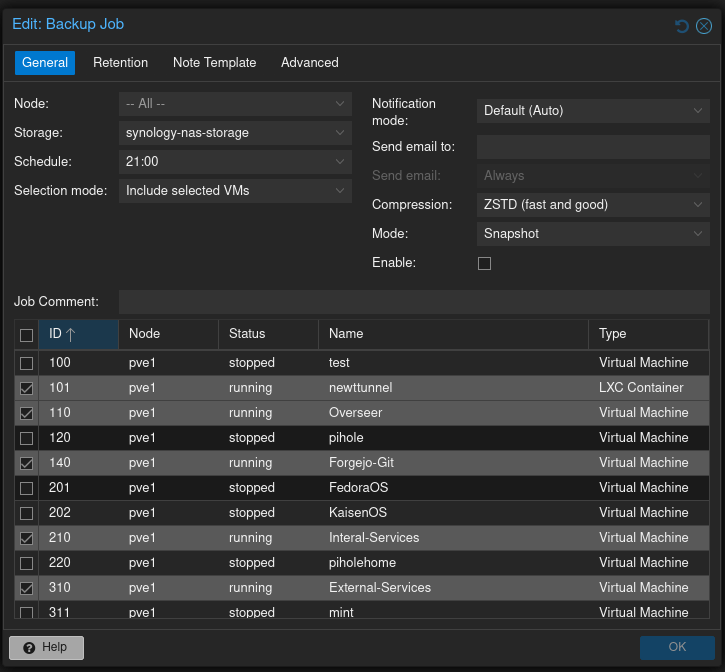
- In Backup Job window under General
- Keep Node to All
- Storage: Select NFS storage we configured
- Schedule: Pick date that works best for you
- Selection Mode: Either select all or manually choose which VMs and LXCs to run backup for
- Mode: Snapshot for daily backup, Suspend or Stop for weekly (make sure that your applications are set to automatically start at reboot)
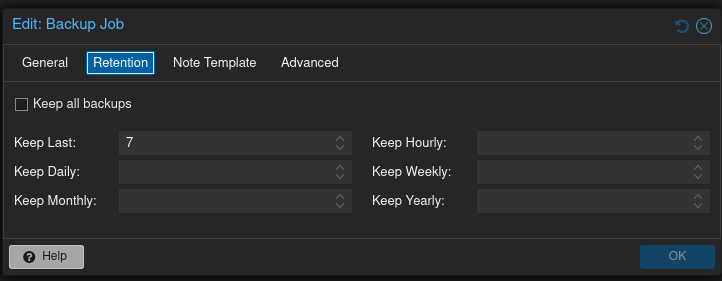
- In Backup Job window under Retention
- Set retention that best works for you, depending on the storage size allocated
How to install Proxmox Backup Client
This guide explains how to install and use Proxmox Backup Client on a Debian VM. This would allow non proxmox machine to be backed up using PBS.
Proxmox Backup Client Documentation
Proxmox Installaton for Proxmox Backup Client Documentation
Installing Proxmox Backup Client
- Add the repository
- In order to configure this repository you need to first setup the Proxmox release key
Please note that this installation is for Debian 12 (Bookworm). If you are on a newer version, use this guide a reference with the updated command on: https://pbs.proxmox.com/docs/installation.html#package-repositories-client-only-apt
sudo wget https://enterprise.proxmox.com/debian/proxmox-release-bookworm.gpg -O /etc/apt/trusted.gpg.d/proxmox-release-bookworm.gpgsudo nano /etc/apt/sources.list.d/pbs-client.list- add the line
deb http://download.proxmox.com/debian/pbs-client bookworm main- Install Proxmox Backup Client
sudo apt updatesudo apt install proxmox-backup-clientproxmox-backup-client versionConfigure Proxmox Backup Client
First backup
sudo proxmox-backup-client backup "backupname".pxar:"directory" --repository "backupuser"@pbs@"PBS-IP":"DataStoreName" -ns "YourNameSpace"Example:
sudo proxmox-backup-client backup mkdocsbackup.pxar:/home/user/docker --repository ardougneBackupUser@pbs@100.102.226.112:HDD-storage-5Tb -ns azure_mkdocsList all backups
proxmox-backup-client list --repository "backupuser"@pbs@"PBS-IP":"DataStoreName" -ns "YourNameSpace"example:
proxmox-backup-client list --repository ardougneBackupUser@pbs@100.102.236.112:HDD-storage-5Tb -ns azure_mkdocsBackup encryption
proxmox-backup-client key create /home/user/encryption.keyFill in your desired key
Storing credentials
This is so that you do not need to enter credentials for each backups.
-
Environment variables: is an option, but credentials are stored in plain text.
-
Systemd credentials: are stored as encrypted files that only systemd decrypts when launching a service. We will be using systmd credentials for this guide.
To store the password of the backup user:
sudo systemd-ask-password -n | systemd-creds encrypt --name=proxmox-backup-client.password - /your/password/directory/password.credTo store the encryption key we created:
systemd-ask-password -n | sudo systemd-creds encrypt --name=proxmox-backup-client.encryption-password - /home/user/encryption-password.credLet's create a systemd service:
sudo nano /etc/systemd/system/backup.servicePaste in the following (fill in your own details and remove the quotes):
[Unit]
Description=Proxmox Backup Client service
Wants=network-online.target
After=network-online.target

[Service]
Type=oneshot
ExecStart=proxmox-backup-client backup "backupname".pxar:/home/user/docker \
  --repository "backupuser"@pbs@"PBS-IP":"DataStoreName" \
  -ns "YourNameSpace" \
  --keyfile /home/user/encryption.key
LoadCredentialEncrypted=proxmox-backup-client.password:/home/user/password.cred
LoadCredentialEncrypted=proxmox-backup-client.encryption-password:/home/user/encryption-password.cred

[Install]
WantedBy=multi-user.target
Reload systemd so it picks up the service
sudo systemctl daemon-reloadTest it:
sudo systemctl start backup.serviceSchedule a backup
To start a backup at a certain time
sudo nano /etc/systemd/system/backup.timer[Unit]
Description=Run backup daily at 2am
[Timer]
OnCalendar=*-*-* 02:00:00
Persistent=true
[Install]
WantedBy=timers.targetsudo systemctl daemon-reloadsudo systemctl enable --now mkdocs-backup.timerRestore a backup
First list all your backups:
sudo proxmox-backup-client snapshot list "backupname".pxar:"directory" --repository "backupuser"@pbs@"PBS-IP":"DataStoreName" -ns "YourNameSpace"To restore a backup:
proxmox-backup-client restore host/"YourHostname"/2025-08-09T15:51:02Z "backupname".pxar /where/to/restore --repository "backupuser"@pbs@"PBS-IP":"DataStoreName" -ns "YourNameSpace"